Get Started
A simple step-by-step guide to setting up Diamond Audio Cue and preparing your first show in both the Mac App and the Web App.
Getting to Know List View
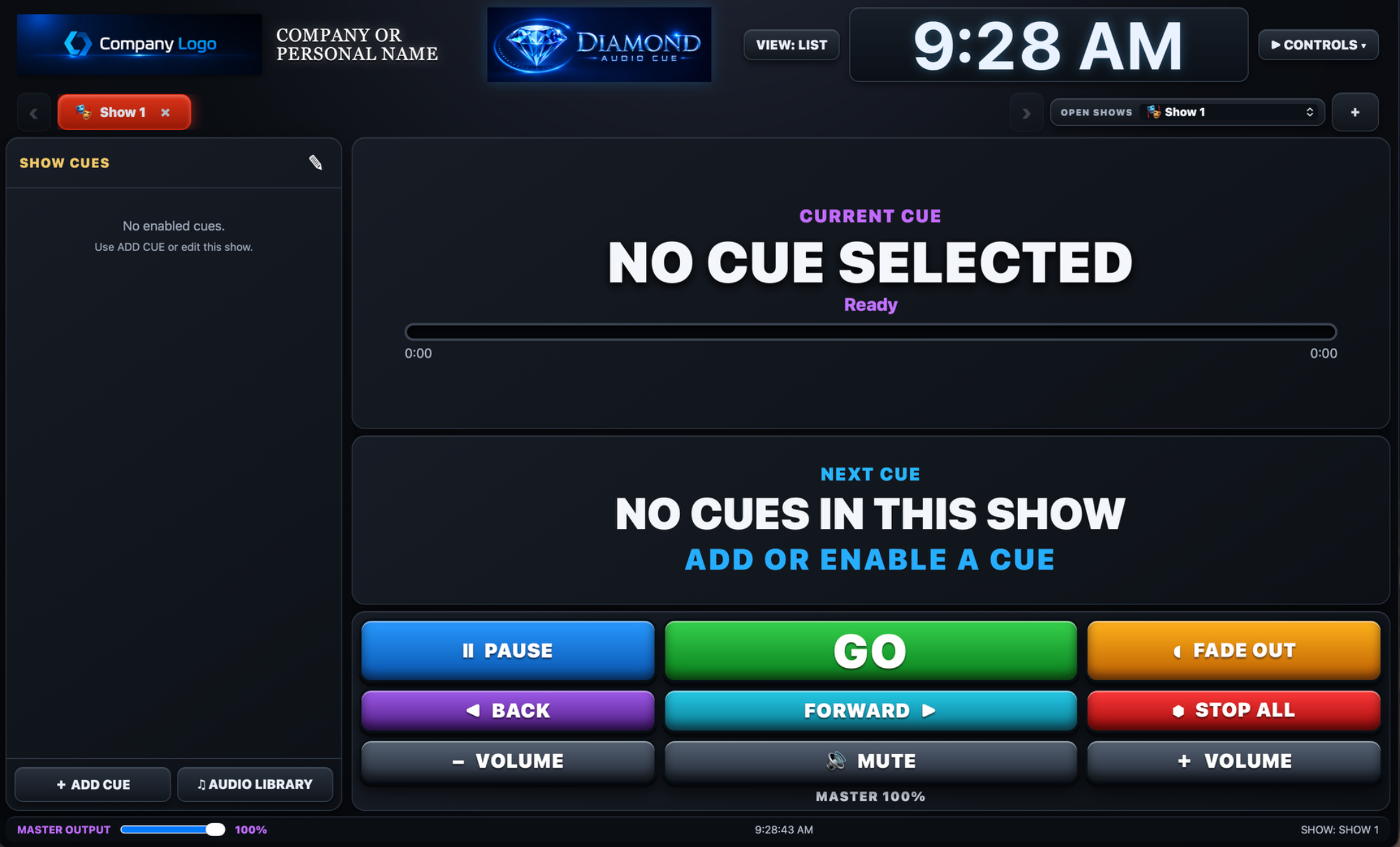
This is the screen that opens after you activate the app. By default, you will begin in List View.
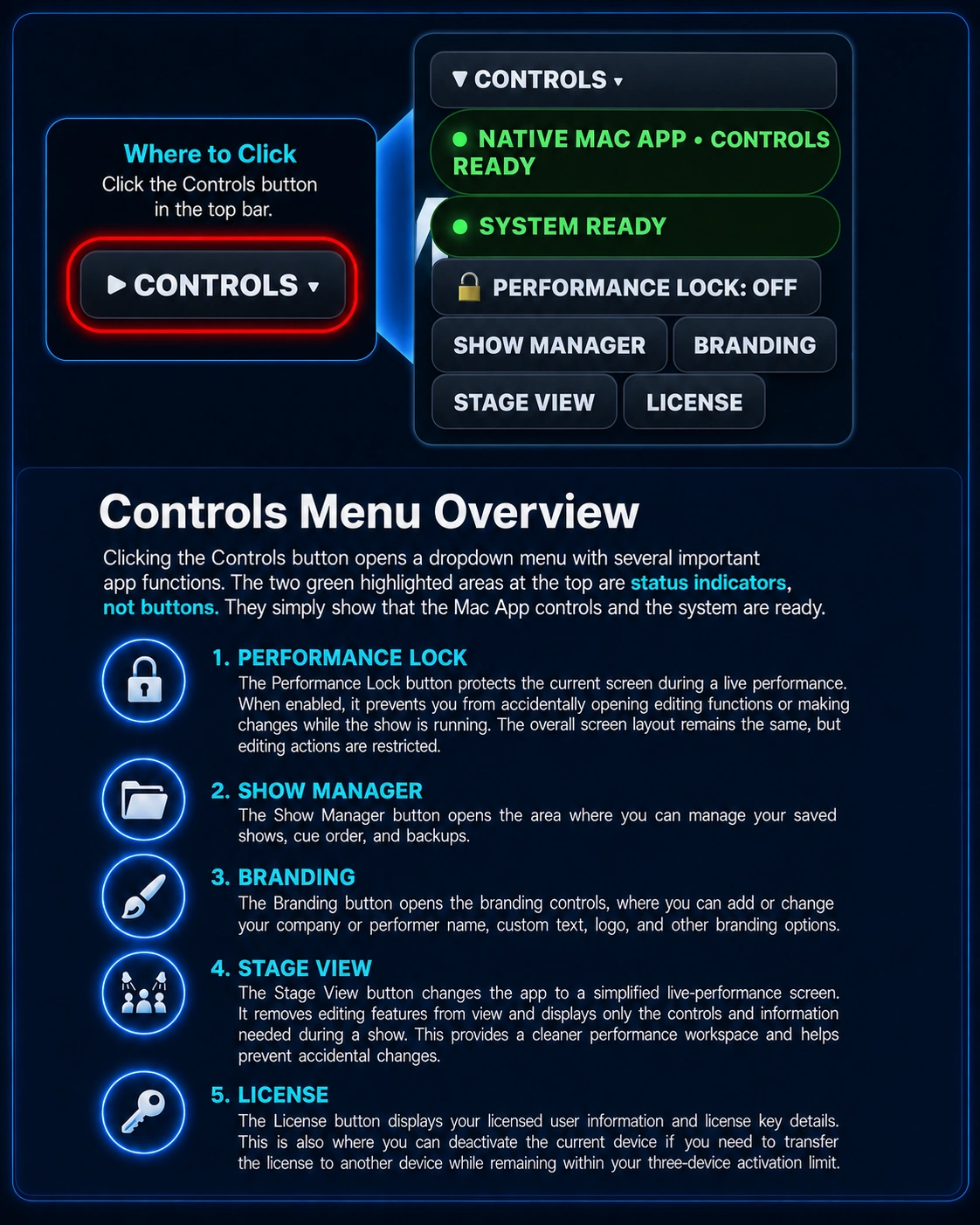
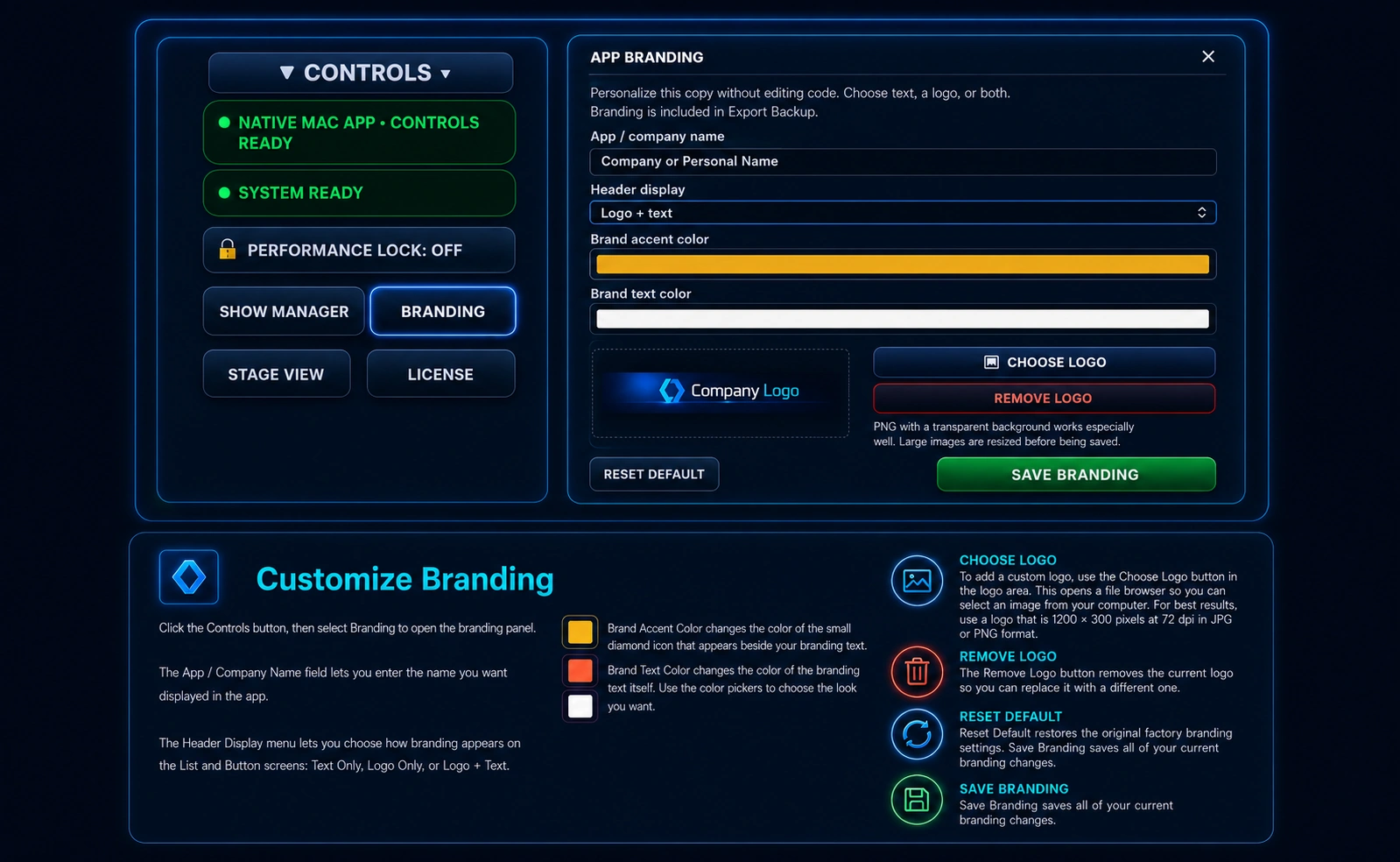
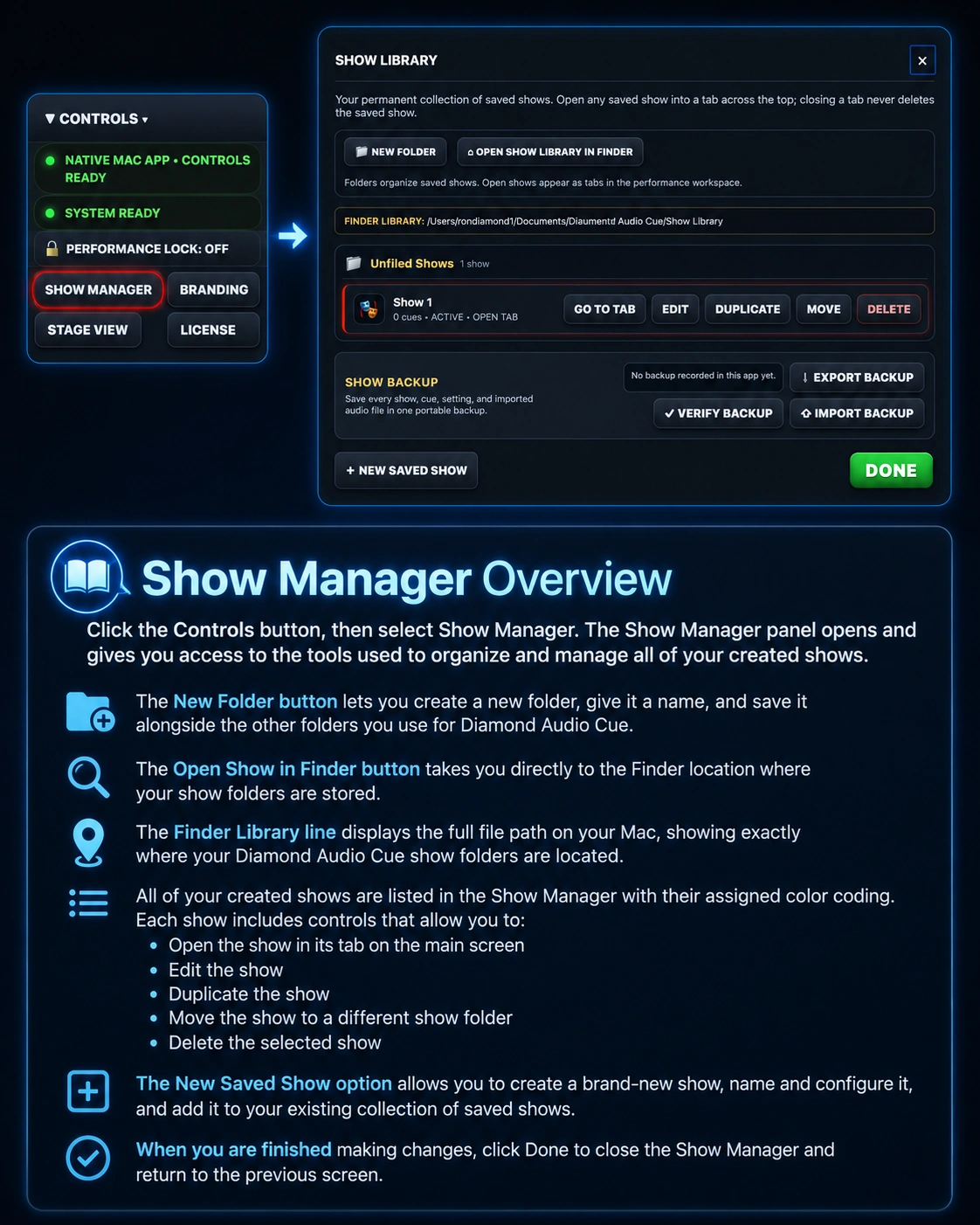
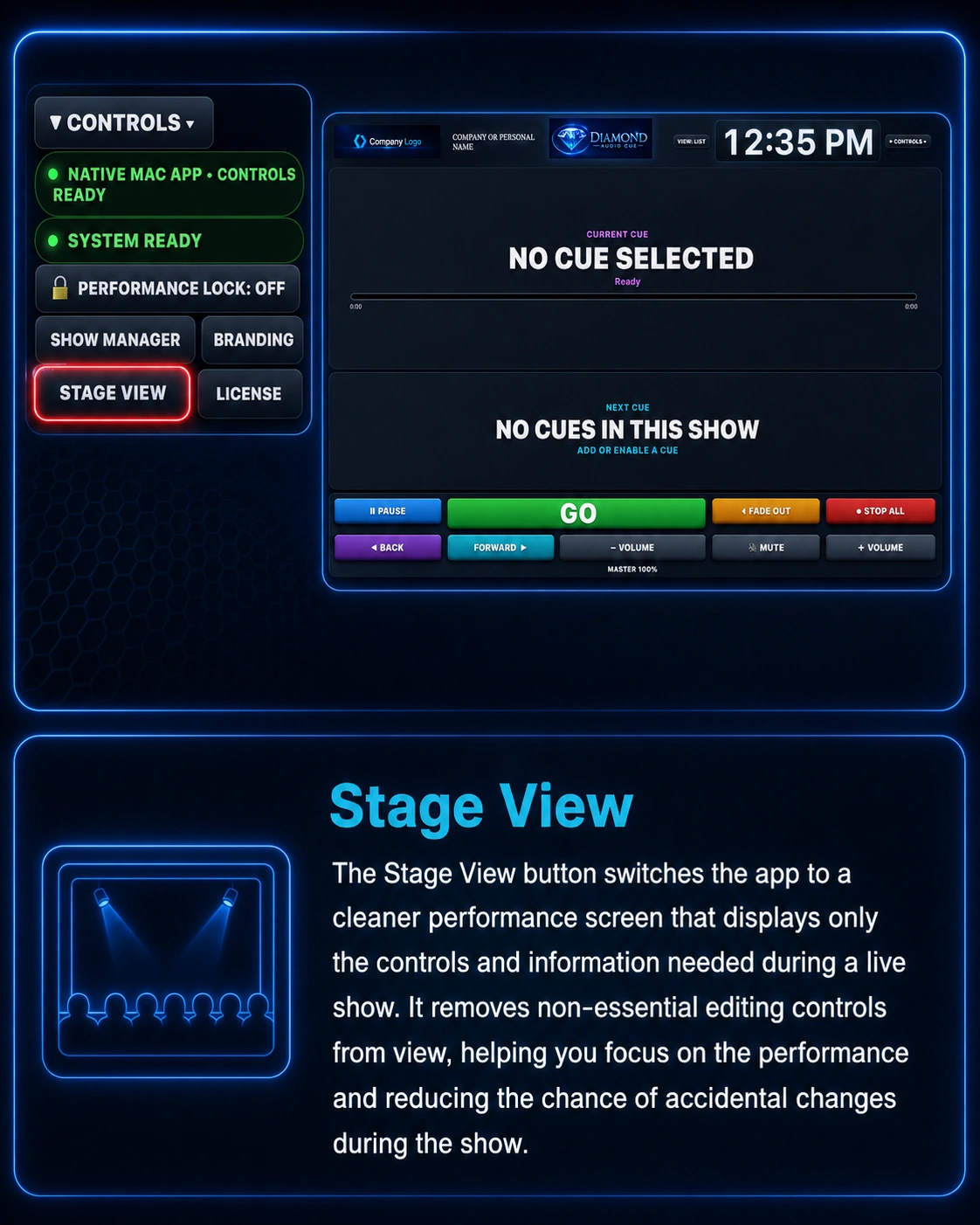
Across the top of the screen, from left to right, you will see the area where you can add a company logo and your own custom text, followed by the Diamond Audio Cue logo. Next is the List View / Button View control, which allows you to switch between the two display modes. You will also see a large clock, useful for keeping track of time during a performance or presentation, and a Control button that provides access to the various editing and setup options.
On the left side is the Show Cue area. This is where the cues for your current show will appear. Above it is a tab showing the name of the current show and the color you selected for that show. You can have multiple show tabs open at the same time and switch between them as needed. A show can be closed by clicking the X on its tab, although at least one show must remain open.
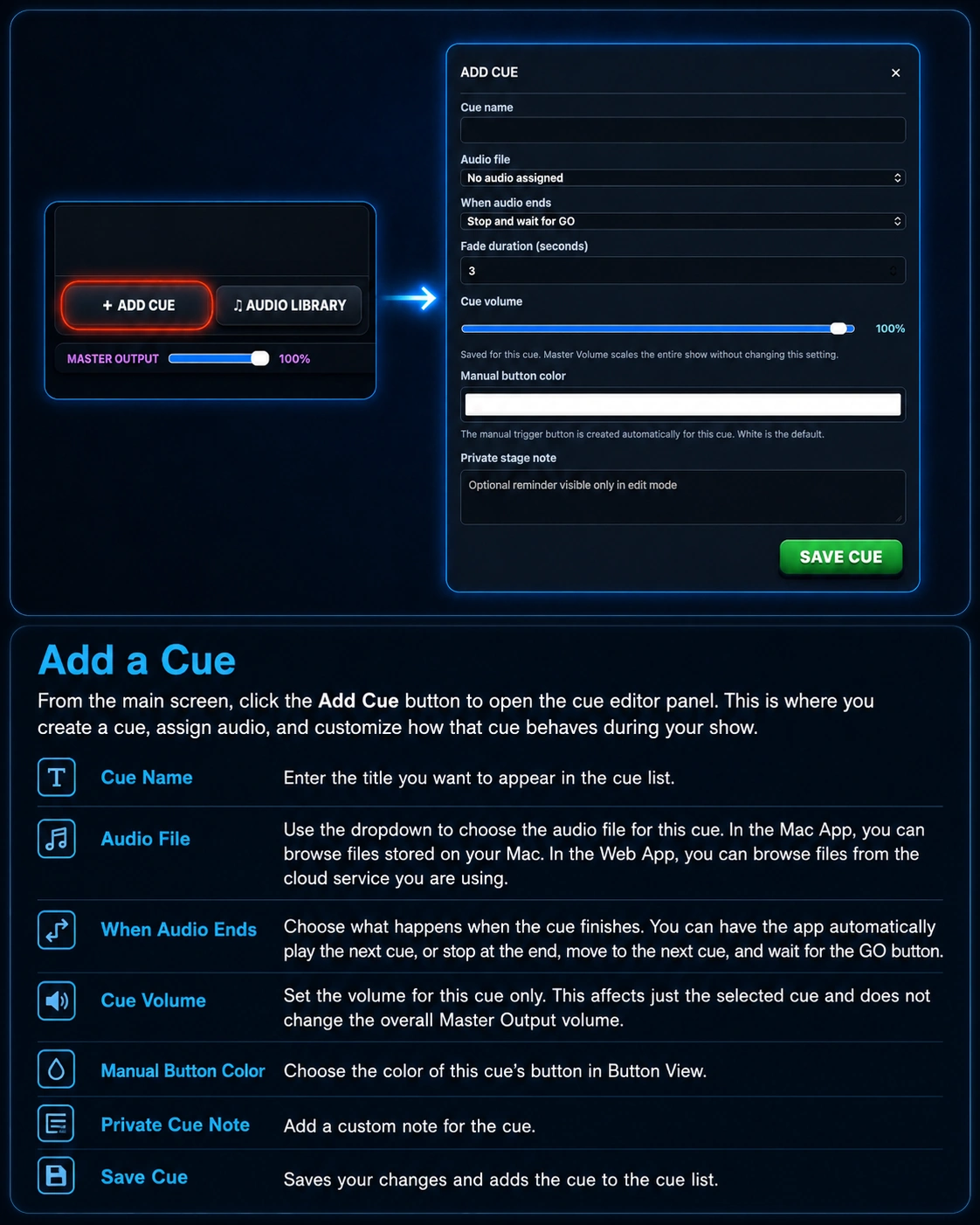
Below the Show Cue area are two important buttons. Import Audio Library opens the folders where your audio files are stored so you can import music and other audio into Diamond Audio Cue. The Add Cue button creates a new cue in the Show Cue area. From there, you can use the cue editing tools to select the audio file and set the options and behavior for that cue.
Under these buttons is the Master Output slider, which controls the overall audio output level from the device you are using.
To the right of the Show Cue area is the larger cue information and playback section. Above the cue information area is an Open Shows dropdown button. Clicking this button displays a list of all the shows you have created that are currently available to open. Selecting a show from this list opens that show as a new tab across the top of the Show Cue area. This allows you to quickly open and switch between any of your saved shows.
At the top of the cue information area, you will see a large display showing the currently active cue, its playback status, and a progress bar that shows the audio playback position and remaining time. Directly below that is another large display showing the next cue in the sequence, along with information about that cue.
At the bottom of the screen are the main playback controls. These controls operate much like the controls on a standard audio player and allow you to manage cue playback during your show.
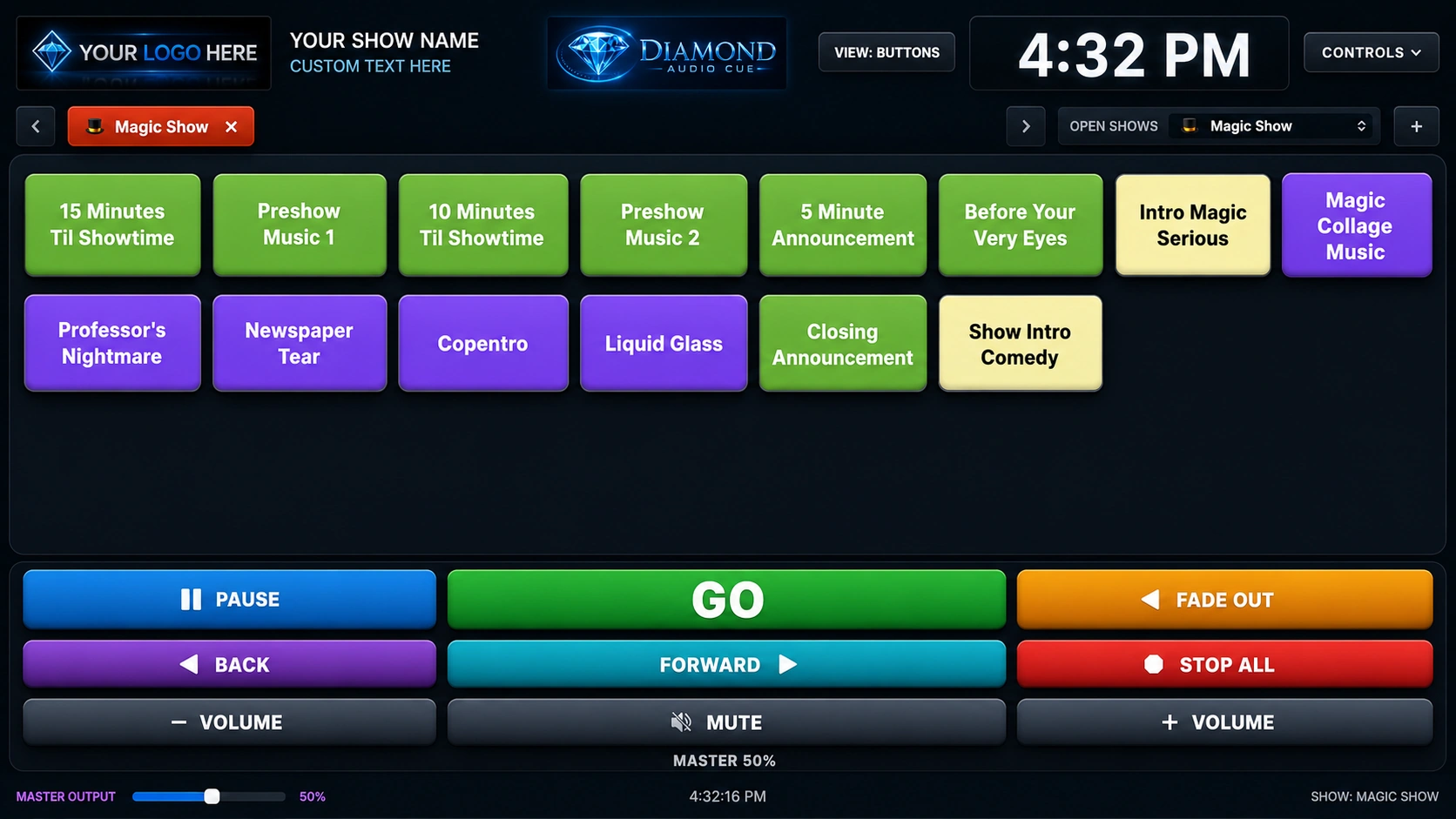
Using Button View
Use the View button at the top of the window to switch from List View to Button View. In Button View, all of the cues in the current show are displayed as individual buttons.
You can continue running the show sequentially with the PLAY CUE button, or you can manually select any cue button at any time to immediately play the audio assigned to that cue.
Cue order stays consistent between the two views. If you rearrange cues in List View, those changes are automatically reflected in Button View, so the cue buttons appear in the same order you created.
Need More Help?
If you have a question while setting up Diamond Audio Cue, visit the Support page or email support@diamondmediacue.com.
Go to Support